 Circuit Creation
LED Reaction Game
Components Required
- Arduino Uno
- 12 LED
- 1k Resistor
- Breadboard
- Jumper Wires
- push button switch
- Buzzer
Description
This project makes an LED reaction game using Arduino Uno. This is an entertainment project for beginners.
Watch Video
Watch on YouTubeArduino Code
  /*
   Led Reaction Game

   Components:
     - Arduino Uno
     - 12 Leds
     - 1k Resistor
     - Breadboard
     - Buzzer
     - Jumber wire
     - Push Button Switch
   Author: Circuit Creation RN

*/


// Define pin numbers

const int ledPins[] = {2, 3, 4, 5, 6, 7, 8, 9, 10, 11, 12, 13};

const int redLedPin = 7;

const int buttonPin = A1;

const int buzzerPin = A2;

int totalLeds = 12;

int currentLed = 0;

bool gamePaused = false;

void setup() {

 // Set all LED pins as OUTPUT

 for (int i = 0; i < totalLeds; i++) {

 pinMode(ledPins[i], OUTPUT);

 }

 pinMode(buttonPin, INPUT_PULLUP); // use internal pull-up resistor

 pinMode(buzzerPin, OUTPUT);

 // Turn off all LEDs and buzzer

 turnOffAllLeds();

 digitalWrite(buzzerPin, LOW);

}

void loop() {

 if (!gamePaused) {

 // Turn off all LEDs

 turnOffAllLeds();

// Turn on current LED

 digitalWrite(ledPins[currentLed], HIGH);

 delay(100); // Adjust scrolling speed here

 // Check for button press

 if (digitalRead(buttonPin) == LOW) {

 gamePaused = true;

 delay(200); // simple debounce

 checkResult();

 }

 // Move to next LED

 currentLed = (currentLed + 1) % totalLeds;

 }

}

void checkResult() {

 if (ledPins[currentLed] == redLedPin) {

 // Correct stop

 happyBeep();

 } else {

 // Wrong stop

 sadBeep();

 }

 delay(2000); // Wait before restarting game

 gamePaused = false;

}

void happyBeep() {

 tone(buzzerPin, 1000, 200); // High tone

 delay(300);

 tone(buzzerPin, 1500, 200); // Higher tone

 delay(300);

 noTone(buzzerPin);

}

void sadBeep() {

 tone(buzzerPin, 400, 400); // Low tone

 delay(500);

 noTone(buzzerPin);

}

void turnOffAllLeds() {

 for (int i = 0; i < totalLeds; i++) {

 digitalWrite(ledPins[i], LOW);

 }

}
Circuit Diagram
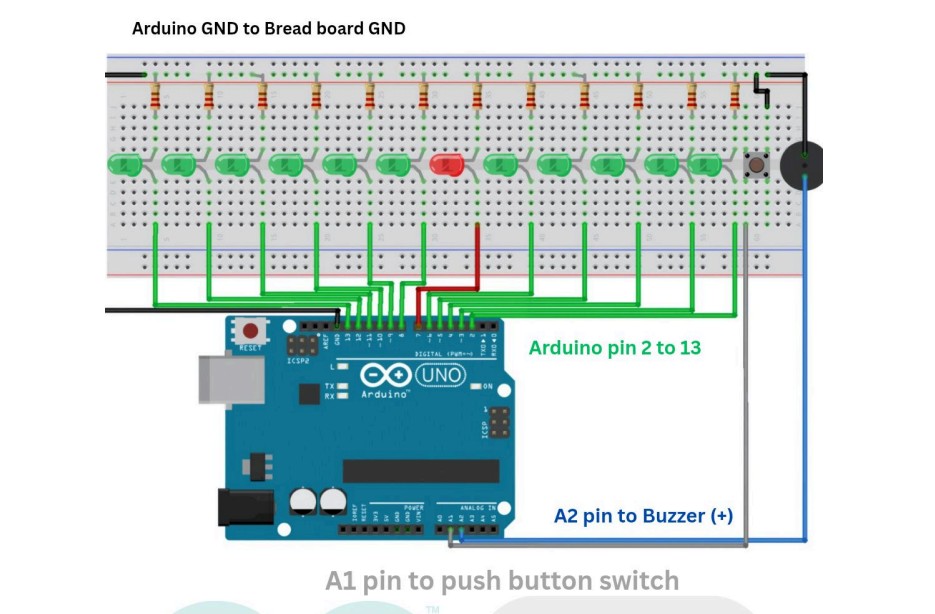
Download Diagram